Getting Started
Official documentation. Build and run desktop automations with Python.
What is AutoWork?
AutoWork is a desktop automation app where you write Python scripts to control mouse, keyboard, files, processes, and windows through a built-in API.
Mouse and keyboard actions use low-level input injection (SendInput) for high execution efficiency and reliable event delivery on Windows.
Create your first project
In AutoWork, click New Project, then enter:
project title, description, and project image (optional).
After creation, the project opens automatically and you can start writing code immediately.
Why import autowork as api?
This import gives you access to all AutoWork commands through a short alias.
Use api to call automation functions like mouse, keyboard, file system, and windows.
Start with short scripts. Validate each action before combining multiple steps.
First example: left click
This minimal script imports AutoWork and performs a left click at x=500, y=320.
import autowork as api

print("Running first click")
api.left_click(500, 320)
How to get screen coordinates
In the editor, click the + button in the top-right area (near Run).
A countdown starts. While the timer is running, move your mouse to the target point.
When the countdown ends, AutoWork captures the cursor position and prints coordinates in the output panel.
Then use those values in commands like api.left_click(x, y).
import autowork as api

api.left_click(x, y)
How to stop execution
To stop a running script, click the red square button in the top-right area,
or press Ctrl + B.
Python scripting
Scripts run in Python. You can use normal Python syntax and Python libraries available in your AutoWork runtime environment.
Next step
After this introduction, move to the next sections to learn AutoWork commands and see practical examples of the framework.
Terminal (CLI)
Run AutoWork projects directly from Command Prompt or PowerShell.
Why use CLI
CLI mode is the fastest way to start an existing project without opening the full GUI. It is useful for quick runs, lower UI overhead, simple testing, and integrations with batch scripts.
How it works
Open cmd or PowerShell and use the autowork command.
AutoWork resolves the project from your local projects folder and runs its main.py.
autowork run My ProjectMain rules
1) Project names with spaces are supported (for example autowork run My Project).
2) If the same project is already open in the AutoWork GUI, CLI execution is blocked to avoid conflicts.
3) Stop hotkey in CLI uses your app settings (Ctrl + key, default Ctrl + B).
4) Closing the terminal stops the running CLI project.
5) You can run a lightweight global hotkeys listener in terminal mode with autowork hotkeys.
Available commands
autowork run <project_name>: run one saved project headless.
autowork hotkeys: start CLI listener for configured global hotkeys (no GUI required).
autowork list: list all saved projects.
autowork help: show CLI usage and available commands.
Examples
Run project:
autowork run My MacroList projects:
autowork listStart global hotkeys listener in CMD/PowerShell:
autowork hotkeysGet help:
autowork helpTroubleshooting
If autowork is not recognized, reinstall/update AutoWork and open a new terminal session.
If a run is blocked with "already in use", close that project in GUI (or stop the other CLI run) and retry.
Global Hotkeys
System-wide shortcuts to run/stop projects instantly.
What they are
Global hotkeys are Windows-level shortcuts registered by AutoWork with low-level APIs. They work system-wide: you can trigger project actions while using other apps.
What you can configure
In the Global Hotkeys section of AutoWork, each rule includes:
1) a key combination (for example CTRL+ALT+P),
2) a target project,
3) an action mode: Run only, Stop only, or Run/Stop.
Mode behavior
Run only: starts the project only if it is not already running.
Stop only: stops the project only if it is currently running.
Run/Stop: toggles project state with one shortcut (start if stopped, stop if running).
CLI integration
Global hotkeys can also run without GUI by starting the CLI listener:
autowork hotkeys.
This mode is useful for lightweight background usage in cmd or PowerShell.
Operational rules
1) One active hotkey combo should map to one action to avoid ambiguity.
2) Use explicit modifiers (CTRL, ALT, SHIFT, WIN) for letters/numbers and named keys.
3) Supported main keys include letters/numbers and function keys F1-F12. Standalone F1-F12 (without modifiers) is valid.
4) Prefer dedicated combinations not used by other software.
5) If a combo is already reserved by another app, registration can fail.
Recommended setup
For production use, assign one shortcut per critical project in Run/Stop mode.
Keep one separate emergency stop shortcut for manual interruption.
Examples
Run/Stop toggle for a project:
CTRL+ALT+M -> Project "My Macro" -> Run/StopFunction key combo:
CTRL+F8 -> Project "My Macro" -> Run onlyCLI listener mode:
autowork hotkeysPrivacy Policy
AutoWork Studio
Last updated: February 2026
AutoWork Studio ("the App") is developed and maintained by DevAuto ("we", "us", or "our"). This Privacy Policy explains our commitment to your privacy and how we handle information.
No Data Collection
AutoWork Studio does not collect, store, transmit, or share any personal information or user data. The App operates entirely on your local device and does not communicate with external servers, cloud services, or third-party systems.
No Internet Connection Required
AutoWork Studio functions fully offline. The App does not make network requests, does not send telemetry or diagnostic data, and does not include analytics or tracking components.
Local Data & Permissions
All scripts, projects, and configurations created within AutoWork Studio are stored exclusively on your local device. If the App requires specific system permissions, they are used solely for local functionality. We have no access to your local data at any time.
Support & Communication
If you contact us via email for technical support or inquiries, we will only use your email address and the information provided to respond to your request. We do not share this information with third parties or use it for marketing purposes.
Children's Privacy
Our App is not directed to individuals under the age of 13 (or 16 in certain jurisdictions). As we do not collect any data, we do not knowingly collect personal information from children.
Third-Party Services
AutoWork Studio does not integrate with third-party services, advertising networks, or data brokers.
Your Rights
Since all data remains on your local device, you have full control over your information. You can delete your projects or the App at any time, which will remove all locally stored data.
Changes to This Policy
If we update this Privacy Policy, we will revise the date at the top of this page. Continued use of the App constitutes acceptance of any changes.
Contact
For questions regarding this Privacy Policy, contact:
autowork.assistance@gmail.com
left_click
Mouse and keyboard command reference.
Signature
api.left_click(x, y)
Description
Performs a left mouse click at the given screen coordinates.
Parameters
x: horizontal screen position in pixels.
y: vertical screen position in pixels.
Example
import autowork as api

api.left_click(500, 320)
right_click
Mouse and keyboard command reference.
Signature
api.right_click(x, y)
Description
Performs a right mouse click at the given screen coordinates.
Parameters
x: horizontal screen position in pixels.
y: vertical screen position in pixels.
Example
import autowork as api

api.right_click(500, 320)
move_to
Move the mouse cursor to a target position.
Signature
api.move_to(x, y, s=0, mode='linear')
Description
Moves the cursor to screen coordinates (x, y).
You can choose duration and movement style.
Parameters
x (int): target horizontal position in pixels.
y (int): target vertical position in pixels.
s (float, default 0): movement duration in seconds.
mode (string, default 'linear'): movement style.
Mode values
linear: constant-speed movement from start to target.
smooth: eased movement (slower start/end, smoother transition).
human: human-like path with natural micro-variations.
Return value
Returns True on success.
Important notes
s must be greater than or equal to 0.
Invalid mode raises an error. Valid modes: linear, smooth, human.
Examples
Instant movement:
import autowork as api

api.move_to(500, 320)
Linear movement in 1 second:
import autowork as api

api.move_to(900, 480, 1.0, 'linear')
Smooth movement in 0.8 seconds:
import autowork as api

api.move_to(700, 400, 0.8, 'smooth')
Human-like movement:
import autowork as api

api.move_to(640, 360, 0.9, 'human')
Practical sequence with click:
import autowork as api

api.move_to(520, 330, 0.6, 'human')
api.left_click(520, 330)
hold
Hold left mouse button for a custom time.
Signature
api.hold(x, y, s)
Description
Moves the cursor to (x, y), presses left mouse down,
waits for s seconds, then releases.
Parameters
x (int): target horizontal position in pixels.
y (int): target vertical position in pixels.
s (float): hold duration in seconds. Must be >= 0.
Return value
Returns True on success.
Examples
Hold for 0.5 seconds:
import autowork as api

api.hold(500, 320, 0.5)
Hold for 2 seconds:
import autowork as api

api.hold(800, 450, 2)
Use with move_to:
import autowork as api

api.move_to(600, 400, 0.4, 'smooth')
api.hold(600, 400, 1.2)
scroll
Scroll the mouse wheel with optional timing control.
Signature
api.scroll(amount, min=0.01, max=0.05)
Description
Sends mouse wheel scroll events. The command executes a number of wheel steps based on amount.
Parameters
amount (int): number of scroll steps.
Positive values scroll up. Negative values scroll down.
min (float, default 0.01): minimum delay between steps in seconds.
max (float, default 0.05): maximum delay between steps in seconds.
Behavior details
If amount is 0, the command does nothing and returns immediately.
Delays between steps are randomized between min and max for more natural scrolling.
Validation rules
min and max must be >= 0.
min must be less than or equal to max.
Return value
Returns True on success.
Examples
Scroll up 3 steps:
import autowork as api

api.scroll(3)
Scroll down 5 steps:
import autowork as api

api.scroll(-5)
Fast scroll with tight delays:
import autowork as api

api.scroll(8, 0.002, 0.01)
Slower, smoother scroll:
import autowork as api

api.scroll(4, 0.03, 0.08)
drag_to
Click-and-drag to a target coordinate.
Signature
api.drag_to(x, y, s=1, mode='linear')
Description
Presses and holds the left mouse button, moves to (x, y),
then releases the button.
Parameters
x (int): target horizontal position in pixels.
y (int): target vertical position in pixels.
s (float, default 1): drag duration in seconds. Must be >= 0.
mode (string, default 'linear'): movement style during drag.
Mode values
linear: constant-speed path.
smooth: eased movement.
human: human-like path with natural variation.
Return value
Returns True on success.
Examples
Basic drag with defaults:
import autowork as api

api.drag_to(900, 450)
Smooth drag in 1.4 seconds:
import autowork as api

api.drag_to(760, 380, 1.4, 'smooth')
Human-like drag:
import autowork as api

api.drag_to(640, 360, 1.1, 'human')
Typical UI workflow:
import autowork as api

api.move_to(450, 300, 0.4, 'smooth')
api.drag_to(900, 300, 0.9, 'linear')
mouse_down
Keeps a mouse button pressed.
Signature
api.mouse_down(button)
Description
Presses a mouse button and keeps it down.
Use this when you want to hold a button manually (for example before moving the mouse).
Parameter
button: which button to press. Use 'left', 'right', or 'middle'.
Return value
Returns True on success.
Examples
Press and hold left button:
import autowork as api

api.mouse_down('left')
Press and hold right button:
import autowork as api

api.mouse_down('right')
Simple sequence (down, wait, up):
import autowork as api

api.mouse_down('left')
api.wait(1)
api.mouse_up('left')
mouse_up
Releases a mouse button.
Signature
api.mouse_up(button)
Description
Releases the button you choose.
Usually used after mouse_down.
Parameter
button: which button to release. Use 'left', 'right', or 'middle'.
Return value
Returns True on success.
Examples
Release left button:
import autowork as api

api.mouse_up('left')
Release middle button:
import autowork as api

api.mouse_up('middle')
key_down
Press and hold a keyboard key.
Signature
api.key_down(key)
Description
Presses a key down and keeps it held until you release it with api.key_up.
Parameter
key: key name or character. Examples: 'a', 'enter', 'ctrl', 'shift', 'f5'.
Return value
Returns True on success.
Examples
Hold the W key:
import autowork as api

api.key_down('w')
api.wait(1)
api.key_up('w')
Start a Ctrl shortcut manually:
import autowork as api

api.key_down('ctrl')
api.press('c')
api.key_up('ctrl')
key_up
Release a keyboard key that is currently down.
Signature
api.key_up(key)
Description
Releases a key that is currently down.
Parameter
key: key name or character. Same format used by api.key_down.
Return value
Returns True on success.
Examples
Release Shift:
import autowork as api

api.key_up('shift')
Release Enter after a short hold:
import autowork as api

api.key_down('enter')
api.wait(0.2)
api.key_up('enter')
press
Press and release one key.
Signature
api.press(key, mode='instant')
Description
Presses and releases one key automatically.
Parameters
key: key name or character (for example 'a', 'enter', 'f5').
mode: 'instant' or 'human'.
'instant' sends key down/up immediately. 'human' adds a short realistic hold before release.
Return value
Returns True on success.
Examples
Press Enter instantly:
import autowork as api

api.press('enter')
Press A with human mode:
import autowork as api

api.press('a', 'human')
hotkey
Press multiple keys together, then release them in reverse order.
Signature
api.hotkey(*keys)
Description
Presses multiple keys as a combo, then releases them in reverse order.
Parameters
*keys: one or more keys as separate arguments.
Example format: 'ctrl', 'shift', 's'.
Return value
Returns True on success.
Examples
Copy selected text:
import autowork as api

api.hotkey('ctrl', 'c')
Open Save As (common shortcut):
import autowork as api

api.hotkey('ctrl', 'shift', 's')
hold_key
Hold a key for a specific time, then release it.
Signature
api.hold_key(name, s)
Description
Holds one key for a specific number of seconds, then releases it.
Parameters
name: key name or character.
s: hold time in seconds (must be >= 0).
Return value
Returns True on success.
Examples
Hold W for 1 second:
import autowork as api

api.hold_key('w', 1)
Hold Space for half a second:
import autowork as api

api.hold_key('space', 0.5)
type
Type text exactly as provided.
Signature
api.type(text, min=0, max=0)
Description
Types the provided text character by character.
Parameters
text: text to type.
min: minimum delay (seconds) between characters.
max: maximum delay (seconds) between characters.
Use min=0 and max=0 for instant typing. If you use delays, min and max must be >= 0 and min <= max.
Return value
Returns True on success.
Examples
Type text instantly:
import autowork as api

api.type('Hello from AutoWork')
Type with a small random delay:
import autowork as api

api.type('This looks more human', 0.03, 0.08)
cursor_position
Get the current mouse position.
Signature
api.cursor_position()
Description
Returns the current cursor coordinates on screen.
Parameters
No parameters.
Return value
Returns a tuple (x, y).
Examples
Print current position:
import autowork as api

x, y = api.cursor_position()
print(x, y)
Use current position for a click:
import autowork as api

x, y = api.cursor_position()
api.left_click(x, y)
sound.play
Play an audio file in background and get its sound index.
Signature
api.sound.play(path, volume=100, pitch=100, loop=False)
Description
Starts audio playback asynchronously. The command returns an index you can use with sound.pause, sound.resume, sound.stop and sound.set_volume.
Multiple sounds can play at the same time.
Parameters
path: audio file path.
volume: number from 0 to 100.
pitch: number from 50 to 200 (playback speed/tone).
loop: if True, repeats until stopped.
Return value
Returns int|None: the created sound index, or None if unavailable.
Examples
Play one sound and keep its index:
import autowork as api

sound1 = api.sound.play(r"C:\Users\USER\Desktop\media\alert.mp3")
print(sound1)
Play with custom volume and loop:
bg = api.sound.play(
    r"C:\Users\USER\Desktop\media\bg.wav",
    volume=35,
    pitch=100,
    loop=True
)
sound.stop
Stop one sound by index, or the latest active sound.
Signature
api.sound.stop(index=None)
Description
Stops a specific sound by index. If index is omitted, it stops the latest active sound.
Examples
Stop by index:
s = api.sound.play(r"C:\Users\USER\Desktop\media\beep.mp3")
api.wait(1)
api.sound.stop(s)
Stop latest active sound:
api.sound.stop()sound.stop_all
Stop every active sound.
Signature
api.sound.stop_all()
Description
Stops all sounds currently active in the runtime.
Examples
Stop everything before a new task:
api.sound.stop_all()
api.sound.play(r"C:\Users\USER\Desktop\media\ready.mp3")
sound.pause
Pause one sound by index, or the latest active sound.
Signature
api.sound.pause(index=None)
Examples
Pause a known sound:
s = api.sound.play(r"C:\Users\USER\Desktop\media\music.mp3")
api.wait(2)
api.sound.pause(s)
Pause latest sound:
api.sound.pause()sound.resume
Resume one paused sound by index, or the latest paused sound.
Signature
api.sound.resume(index=None)
Examples
Pause then resume:
s = api.sound.play(r"C:\Users\USER\Desktop\media\music.mp3")
api.wait(2)
api.sound.pause(s)
api.wait(1)
api.sound.resume(s)
Resume latest paused sound:
api.sound.resume()sound.is_playing
Check if any sound (or one sound index) is currently playing.
Signature
api.sound.is_playing(index=None)
Return value
Returns True if playing, else False.
Examples
Check global playback state:
if api.sound.is_playing():
    print("audio active")
Check one sound index:
s = api.sound.play(r"C:\Users\USER\Desktop\media\beep.mp3")
print(api.sound.is_playing(s))
sound.status
Get full audio runtime state.
Signature
api.sound.status()
Description
Returns the complete runtime audio state as a dictionary.
Return value
Type: dict.
Global fields
loaded (bool): True if there is at least one active sound.
playing (bool): True if at least one sound is currently playing.
paused (bool): pause state of the latest active sound.
path (str): path of the latest active sound (empty if none).
volume (float): volume of the latest active sound, range 0..100.
pitch (float): pitch/speed value of the latest active sound, range 50..200.
loop (bool): loop flag of the latest active sound.
sounds (list[dict]): active sound entries.
next_index (int): next sound index that will be assigned.
pid (int|None): process id of the sound host when available.
updated_at (float): Unix timestamp of last state update.
Per-sound fields (items in sounds)
index (int): unique sound id returned by sound.play.
command_id (str): internal command correlation id.
alias (str): internal playback alias used by runtime audio host.
loaded (bool): whether the sound handle is loaded.
playing (bool): whether that sound is currently playing.
paused (bool): whether that sound is paused.
path (str): audio file path.
volume (float): sound volume.
pitch (float): sound pitch/speed value.
loop (bool): repeat mode.
position_ms (int, optional): current position in milliseconds when available.
Notes
status() is read-only: it does not modify playback.
When no sound is active, sounds is an empty list and summary fields use default values.
Examples
Read full state:
state = api.sound.status()
print(state)
Read latest sound safely:
state = api.sound.status()
sounds = state.get('sounds', [])
if sounds:
    last = sounds[-1]
    print(last.get('index'), last.get('volume'))
sound.list
Get only the active sounds list.
Signature
api.sound.list()
Description
Returns only active sound entries (without the global summary fields returned by sound.status()).
Return value
Type: list[dict].
If no sound is active, returns an empty list [].
Per-item fields
index (int): unique sound id returned by sound.play.
command_id (str): internal command correlation id.
alias (str): internal playback alias used by runtime audio host.
loaded (bool): whether the sound handle is loaded.
playing (bool): whether that sound is currently playing.
paused (bool): whether that sound is paused.
path (str): audio file path.
volume (float): sound volume, range 0..100.
pitch (float): sound pitch/speed value, range 50..200.
loop (bool): repeat mode.
position_ms (int, optional): current playback position in milliseconds when available.
Notes
sound.list() is read-only and does not modify playback state.
For global fields such as loaded, playing, pid, and updated_at, use sound.status().
Examples
Print active indexes:
for s in api.sound.list():
    print(s['index'])
Stop sounds with low volume:
for s in api.sound.list():
    if s.get('volume') == 10:
        api.sound.stop(s.get('index'))
sound.set_volume
Change volume for one sound or the latest active sound.
Signature
api.sound.set_volume(volume, index=None)
Parameters
volume: number in range 0..100.
index: optional sound index. If omitted, updates the latest active sound.
Examples
Lower a specific sound:
s = api.sound.play(r"C:\Users\USER\Desktop\media\track.mp3", volume=80)
api.wait(1)
api.sound.set_volume(30, s)
Mute latest active sound:
api.sound.set_volume(0)clipboard.get_text
Read current system clipboard text.
Signature
api.clipboard.get_text()
Description
Returns clipboard text. If no text format is available, returns an empty string.
Examples
Read and print clipboard:
text = api.clipboard.get_text()
print(text)
Wait until clipboard changes:
last = api.clipboard.get_text()
while True:
    now = api.clipboard.get_text()
    if now != last:
        print("changed:", now)
        break
    api.wait(0.1)
clipboard.set_text
Write text to system clipboard.
Signature
api.clipboard.set_text(text)
Return value
Returns True on success.
Examples
Copy fixed text:
api.clipboard.set_text("Hello from AutoWork")Copy and paste into focused app:
api.clipboard.set_text("report ready")
api.hotkey('ctrl', 'v')
clipboard.has_text
Check if clipboard currently contains non-empty text.
Signature
api.clipboard.has_text()
Return value
Returns True when text exists and is not empty; otherwise False.
Examples
Guard before read:
if api.clipboard.has_text():
    data = api.clipboard.get_text()
    print(data)
Fallback text when empty:
text = api.clipboard.get_text() if api.clipboard.has_text() else "empty"
print(text)
clipboard.clear
Clear clipboard text content.
Signature
api.clipboard.clear()
Return value
Returns True on success.
Examples
Clear then verify:
api.clipboard.clear()
print(api.clipboard.has_text())
Clear before sensitive input:
api.clipboard.clear()
api.type("safe input mode")
find_image
Find an image on screen inside a target area.
Signature
api.find_image(x, y, x2, y2, path, similarity=80, direction='lr_tb', first_match=True)
Description
Searches a screenshot area for a template image (OpenCV match) and returns the center of the match.
If no match is found, it returns (-1, -1).
How area coordinates work
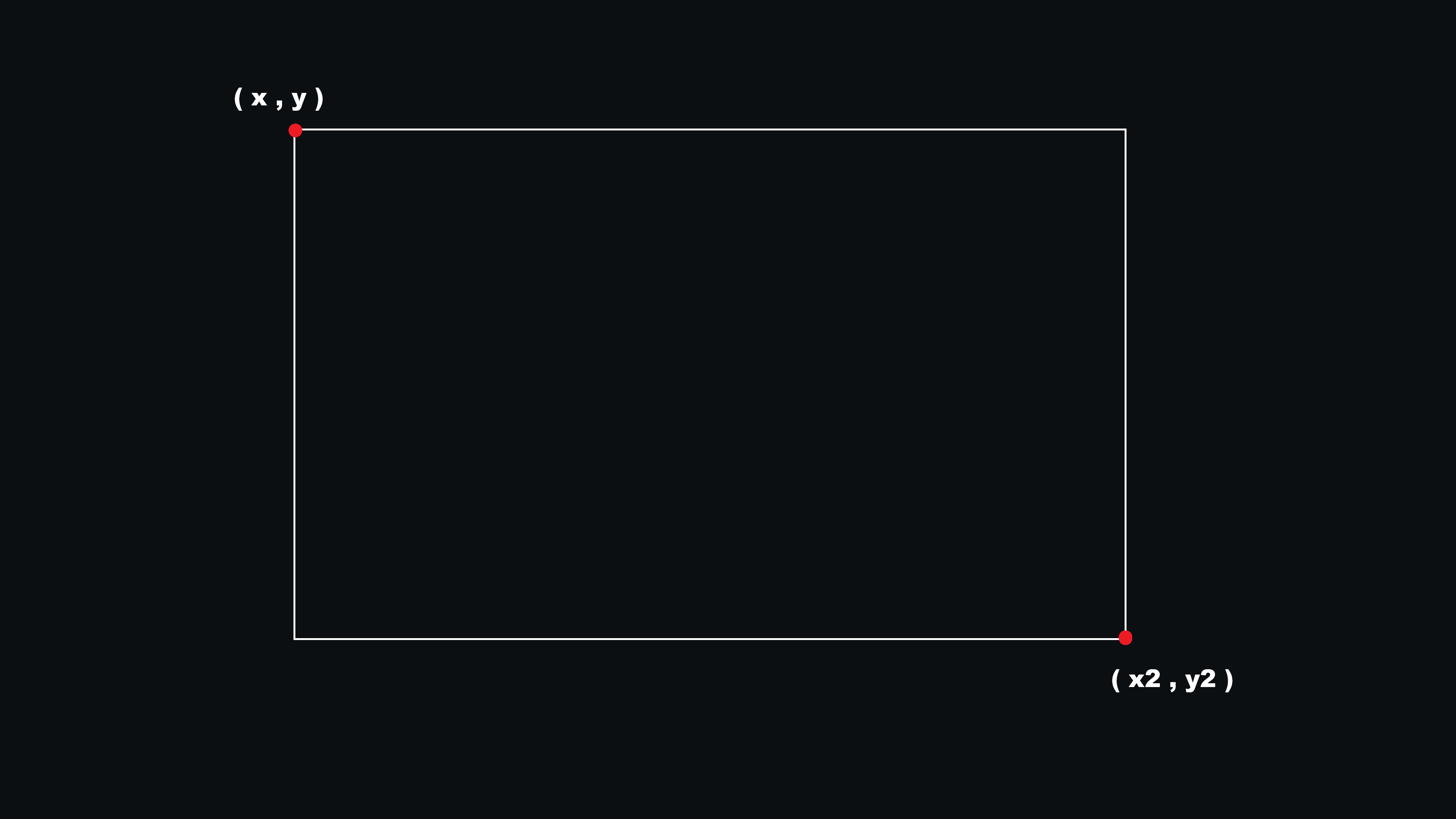
x, y and x2, y2 define the search rectangle on screen.
You can think of them as opposite corners of the area to scan.
Order does not matter: the command automatically normalizes min/max internally.
Example: (300, 200, 1200, 800) and (1200, 800, 300, 200) scan the same area.
Parameters
x, y, x2, y2: screen area corners in pixels.
path: file path of the image you want to find.
similarity: threshold from 0 to 100. Higher means stricter match.
direction: match ordering mode when multiple matches exist.
first_match: if True, returns first match by direction; if False, picks best score first.
Direction options
lr_tb: left to right, then top to bottom.
rl_tb: right to left, then top to bottom.
lr_bt: left to right, then bottom to top.
rl_bt: right to left, then bottom to top.
tb_lr: top to bottom, then left to right.
bt_lr: bottom to top, then left to right.
tb_rl: top to bottom, then right to left.
bt_rl: bottom to top, then right to left.
For most scripts, keep default lr_tb.
Path on Windows (important)
If your path uses backslashes \, use a raw string with r"...".
This avoids escape issues like \n or \t being interpreted as special characters.
import autowork as api

# Recommended on Windows:
template = r"C:\Users\USER\Desktop\templates\play_button.png"
You can also use forward slashes:
template = "C:/Users/USER/Desktop/templates/play_button.png"Return value
Returns a tuple (x, y) of the matched image center, or (-1, -1) if not found.
Examples
Basic search on full HD screen area:
import autowork as api

pos = api.find_image(
    0, 0, 1920, 1080,
    r"C:\Users\USER\Desktop\templates\ok_button.png"
)
print(pos)
Find then click if present:
import autowork as api

x, y = api.find_image(
    300, 200, 1500, 900,
    r"C:\Users\USER\Desktop\templates\play.png",
    similarity=90
)

if (x, y) != (-1, -1):
    api.left_click(x, y)
else:
    print('not found')
Use custom direction and best-score behavior:
import autowork as api

pos = api.find_image(
    200, 120, 1700, 980,
    r"C:\Users\USER\Desktop\templates\icon.png",
    similarity=85,
    direction='tb_lr',
    first_match=False
)
print(pos)
find_all_images
Find all matches of an image in a screen area.
Signature
api.find_all_images(x, y, x2, y2, path, similarity=80)
Description
Searches the target screen area and returns all matches for the template image.
Unlike find_image, this command returns every match, not only one.
How area coordinates work
x, y and x2, y2 are opposite corners of the search area.
Order does not matter: the command normalizes the area internally.
Parameters
x, y, x2, y2: search area corners in pixels.
path: template image file to find.
similarity: threshold from 0 to 100 (default 80).
Return value
Returns a list of tuples [(x, y), ...], one for each detected match center.
If nothing is found, it returns an empty list [].
Notes
Results are sorted top-to-bottom, then left-to-right.
Overlapping high-score pixels of the same object are merged into a single match.
Path formatting rules are the same as find_image.
Examples
Get all matches and print count:
import autowork as api

matches = api.find_all_images(
    0, 0, 1920, 1080,
    r"C:\Users\USER\Desktop\templates\coin.png",
    similarity=88
)

print(len(matches))
Access coordinates from the returned list:
import autowork as api

matches = api.find_all_images(
    0, 0, 1920, 1080,
    r"C:\Users\USER\Desktop\templates\coin.png"
)

if matches:
    first = matches[0]   # first is (x, y)
    x = first[0]
    y = first[1]
    print(x, y)
else:
    print('not found')
Click every match found:
import autowork as api

matches = api.find_all_images(
    250, 160, 1650, 940,
    r"C:\Users\USER\Desktop\templates\reward.png"
)

if not matches:
    print('not found')
else:
    for x, y in matches:
        api.left_click(x, y)
compare_image
Compare a screen area with a template image and get a similarity score.
Signature
api.compare_image(x, y, x2, y2, path)
Description
Captures the target area on screen and compares it with the image file.
Returns an integer score from 0 to 100, where higher means more similar.
How area coordinates work
x, y and x2, y2 are opposite corners of the area to capture.
Order does not matter (the area is normalized internally).
If area width or height is zero, the result is 0.
Parameters
x, y, x2, y2: area corners in pixels.
path: template image path.
Return value
Returns an integer similarity score in range 0..100.
When something is invalid (missing file, invalid area, decode/capture error), it returns 0.
When to use it
Use compare_image when you need a confidence score.
Use find_image when you need exact coordinates of a match.
Examples
Read and print similarity score:
import autowork as api

score = api.compare_image(
    300, 180, 900, 620,
    r"C:\Users\USER\Desktop\templates\panel.png"
)
print(score)
Simple threshold check:
import autowork as api

score = api.compare_image(
    0, 0, 1920, 1080,
    r"C:\Users\USER\Desktop\templates\main_screen.png"
)

if score >= 90:
    print('screen matches')
else:
    print('different screen')
read_image
Extract text from a screen area with configurable spacing and OCR preprocessing.
Signature
api.read_image(x, y, x2, y2, space_factor=1.3, preprocess='none')
Description
Captures a screen area and runs OCR to extract visible text.
The result is a plain string. If no text is detected, it returns '' (empty string).
When multiple text lines are found, they are returned as separate lines joined by \n.
How area coordinates work
x, y and x2, y2 are opposite corners of the area to scan.
Order does not matter because the command normalizes the area internally.
Parameters
x, y, x2, y2: screen area corners in pixels.
space_factor (float, default 1.3): controls how easily spaces are inserted from OCR geometry.
preprocess (string, default 'none'): OCR image preprocessing mode. Allowed values are 'none', 'light', 'strong'.
How space_factor works
Spacing is reconstructed from OCR box distance (geometric spacing), not from language assumptions.
Lower values (for example 0.8) make spacing more permissive, so spaces are inserted more often.
Higher values (for example 1.8) are stricter, so fewer spaces are inserted.
Use low values when words are often merged; use high values when text is incorrectly split too much.
Important: if OCR recognizes merged words inside a single token, spacing changes may have limited effect.
Preprocess Modes
none: no extra filtering. Only ROI scaling is applied (upscale for tiny text, downscale for very large areas).
light: grayscale + CLAHE local contrast enhancement + mild denoise.
strong: same as light plus adaptive threshold (binary image), useful for hard low-contrast captures.
When to use each preprocess mode
Use none for clean UI text, high-quality screenshots, and normal dark/light themes.
Use light when text is slightly blurred, compressed, or low-contrast.
Use strong for difficult captures (small fonts on noisy backgrounds, washed colors, uneven contrast).
Start with none, then try light, then strong only if needed.
Return value
Returns a string.
If multiple lines are found, they are joined with line breaks.
If no text is detected, returns ''.
Language support
Accents and Unicode characters are supported in the returned text.
Recognition quality for specific languages (for example Russian, Chinese, Arabic) depends on the OCR models available in your runtime.
In practice: test your target language with real screenshots before building a full automation flow.
Validation and Errors
The area must be non-empty (width and height greater than zero).
space_factor must be numeric.
preprocess must be one of 'none', 'light', 'strong'.
If OCR backend initialization fails, the command raises an error with details.
Best Practices
Capture tight ROIs around text to reduce noise and improve speed.
Avoid huge full-screen OCR unless strictly necessary.
Tune one parameter at a time: first preprocess, then space_factor.
Examples
Basic usage (defaults):
import autowork as api

text = api.read_image(400, 250, 1200, 520)
print(text)
Use light preprocess on noisy UI:
import autowork as api

text = api.read_image(
    300, 180, 900, 380,
    space_factor=1.3,
    preprocess='light'
)
print(text)
Spacing tuning with strict preprocess:
import autowork as api

text = api.read_image(
    0, 0, 1920, 1080,
    space_factor=1.8,
    preprocess='strong'
)
print(text)
Handle empty OCR result:
import autowork as api

text = api.read_image(300, 180, 900, 380, preprocess='none')

if text.strip() == '':
    print('no text found')
else:
    print(text)
find_text
Find a text on screen and return its center coordinates.
Signature
api.find_text(x, y, x2, y2, text, direction='lr_tb', first_match=True, space_factor=1.3, preprocess='none', similarity=100)
Description
Scans the target area, searches for the requested text, and returns the center point of the match.
If no match is found, it returns (-1, -1).
Text matching is case-insensitive and checks exact text by default.
Lower similarity values can tolerate small letter differences such as missing or changed characters.
The OCR capture pipeline uses the same preprocessing options as read_image.
How area coordinates work
x, y and x2, y2 are opposite corners of the scan area.
Order does not matter; the area is normalized internally.
Parameters
x, y, x2, y2: area corners in pixels.
text: text to find. Must be non-empty.
direction: controls which match is preferred when multiple matches exist.
first_match: if True, returns the first match by direction; if False, prefers higher confidence first.
space_factor (float, default 1.3): controls OCR spacing reconstruction like read_image.
preprocess (string, default 'none'): OCR image preprocessing mode. Allowed values are 'none', 'light', 'strong'.
similarity (number, default 100): letter-level text similarity from 0 to 100. 100 means exact match.
If text is empty (for example ''), the command raises an error.
OCR Options
space_factor is useful when OCR merges or over-splits words before matching.
preprocess='none' is best for clean UI text.
preprocess='light' helps on slightly blurred or low-contrast text.
preprocess='strong' can help on difficult screenshots with noisy backgrounds.
similarity=100 keeps strict exact matching; lower values allow small OCR mistakes such as one missing or different letter.
Direction options
lr_tb: left to right, then top to bottom.
rl_tb: right to left, then top to bottom.
lr_bt: left to right, then bottom to top.
rl_bt: right to left, then bottom to top.
tb_lr: top to bottom, then left to right.
bt_lr: bottom to top, then left to right.
tb_rl: top to bottom, then right to left.
bt_rl: bottom to top, then right to left.
Return value
Returns a tuple (x, y) for the matched text center, or (-1, -1) if not found.
Examples
Find text and click it:
import autowork as api

x, y = api.find_text(
    0, 0, 1920, 1080,
    'Sign in'
)

if (x, y) != (-1, -1):
    api.left_click(x, y)
else:
    print('not found')
Use a custom direction and best-confidence selection:
import autowork as api

pos = api.find_text(
    250, 160, 1650, 940,
    'play',
    direction='tb_lr',
    first_match=False
)

print(pos)
Use OCR preprocessing and spacing tuning:
import autowork as api

pos = api.find_text(
    300, 180, 900, 380,
    'Sign in',
    space_factor=1.1,
    preprocess='light'
)

print(pos)
Tolerate a small OCR typo:
import autowork as api

pos = api.find_text(
    0, 0, 1400, 900,
    'porta',
    similarity=80
)

print(pos)
get_color
Read the pixel color at a specific screen coordinate.
Signature
api.get_color(x, y)
Description
Captures one pixel at coordinate (x, y) and returns its color in RGB format.
Parameters
x: horizontal screen coordinate in pixels.
y: vertical screen coordinate in pixels.
Return value
Returns a tuple (r, g, b).
Each channel is an integer from 0 to 255.
Errors
If the pixel cannot be captured, the command raises an error.
Examples
Read and print RGB values:
import autowork as api

r, g, b = api.get_color(500, 320)
print(r, g, b)
Simple color check:
import autowork as api

r, g, b = api.get_color(640, 360)

if (r, g, b) == (255, 255, 255):
    print('white pixel')
else:
    print('different color')
screenshot
Capture a screen area and save it quickly as PNG.
Signature
api.screenshot(x, y, x2, y2, path, exist_ok=True)
Description
Captures the selected screen area and saves it to disk.
The image is written as PNG data.
How area coordinates work
x, y and x2, y2 are opposite corners of the capture area.
Order does not matter; the command normalizes min/max internally.
Important: width and height must be greater than zero, so x != x2 and y != y2.
Parameters
x, y, x2, y2: area corners in pixels.
path: destination file path.
exist_ok: if False, writing to an existing file raises an error.
Return value
Returns True on success.
Edge cases
Empty area (zero width or height) raises an error.
Empty path raises an error.
If destination already exists and exist_ok=False, raises an error.
If destination path points to a directory, raises an error.
If parent directory does not exist, raises an error.
Screen capture failures raise an error.
Save/write failures raise an error.
Examples
Save a screenshot on Desktop:
import autowork as api

api.screenshot(
    300, 180, 1400, 900,
    r"C:\Users\USER\Desktop\capture.png"
)
Require a new output file (do not overwrite):
import autowork as api

api.screenshot(
    0, 0, 1920, 1080,
    r"C:\Users\USER\Desktop\full.png",
    exist_ok=False
)
fs.info
Get metadata about a file or folder path.
Signature
api.fs.info(path)
Description
Returns a dictionary with information about the given path.
Works for existing and non-existing paths.
Parameters
path: target file or folder path.
Return value
Returns a dictionary with these keys:
path: original input path string.
absolute_path: resolved absolute path.
exists: True if path exists, otherwise False.
is_file: True if path is a file.
is_dir: True if path is a directory.
name: last path element (file/folder name).
suffix: file extension (example .txt), empty for folders.
parent: parent directory path.
size: file size in bytes (folders return 0).
created_at: creation timestamp (float) or None.
modified_at: modification timestamp (float) or None.
Notes
If path is empty, the function returns a valid dictionary with default values (no exception).
Examples
Read info and print basic fields:
import autowork as api

info = api.fs.info(r"C:\Users\USER\Desktop\project\main.py")
print(info['exists'], info['is_file'], info['size'])
Check if a folder exists:
import autowork as api

data = api.fs.info(r"C:\Users\USER\Desktop\docs")

if data['exists'] and data['is_dir']:
    print('folder ready')
else:
    print('folder not found')
fs.exists
Check if a file or folder path exists.
Signature
api.fs.exists(path)
Description
Returns True if the given path exists, otherwise False.
It works for both files and folders.
Parameters
path: file or folder path to check.
Return value
Returns a boolean:
True = path exists.
False = path does not exist.
Notes
If path is None or an empty string, it returns False (no exception).
Examples
Check a file:
import autowork as api

ok = api.fs.exists(r"C:\Users\USER\Desktop\project\main.py")
print(ok)
Check a folder before creating files:
import autowork as api

folder = r"C:\Users\USER\Desktop\output"

if api.fs.exists(folder):
    print('folder exists')
else:
    print('folder missing')
fs.list
List files and folders from a directory.
Signature
api.fs.list(path, recursive=False, pattern='*')
Description
Scans a directory and returns metadata entries for matched items.
Items are sorted with folders first, then files, by name.
Parameters
path: base directory to scan. Must exist and be a directory.
recursive: if True, scans subfolders too. Default is False.
pattern: glob filter (examples: '*', '*.py', '*.json').
Return value
Returns a list of dictionaries. Each dictionary contains:
name, path, absolute_path, is_file, is_dir, size, created_at, modified_at.
For directories, size is 0.
Errors
Path is empty: raises an error.
Path does not exist: raises an error.
Path is not a directory: raises an error.
Insufficient permissions: may raise an error.
File system I/O failures during scan: may raise an error.
Examples
List current-level items:
import autowork as api

items = api.fs.list(r"C:\Users\USER\Desktop\project")
print(len(items))
List Python files recursively and access fields:
import autowork as api

items = api.fs.list(
    r"C:\Users\USER\Desktop\project",
    recursive=True,
    pattern='*.py'
)

for item in items:
    print(item['name'], item['is_file'], item['size'])
fs.username
Get the current Windows profile username.
Signature
api.fs.username()
Description
Returns the current user profile name, usually the same name used in C:\Users\<name>.
Use it to build portable user paths without hardcoding usernames.
Parameters
No parameters.
Return value
Returns a string with the active profile username.
Example return: "Profile1".
Errors
If the username cannot be resolved from the system profile/environment, it raises an error.
Examples
Build a Desktop path dynamically:
import autowork as api

user = api.fs.username()
desktop = f"C:/Users/{user}/Desktop"
print(desktop)
Use with fs.exists:
import autowork as api

user = api.fs.username()
project = f"C:/Users/{user}/Desktop/AutoWork/main.py"

if api.fs.exists(project):
    print("found")
else:
    print("missing")
fs.list_processes
Get running processes with pid, name, and path.
Signature
api.fs.list_processes()
Description
Returns a sorted list of running process entries.
Each entry includes process ID, name, and executable path (when available).
Parameters
No parameters.
Return value
Returns a list of dictionaries with:
pid (int), name (string), path (string or None).
Some processes may have path = None.
Errors
This command is supported only on Windows.
If process listing fails, it raises an error.
Examples
Print first 10 process names:
import autowork as api

procs = api.fs.list_processes()

for i in range(min(10, len(procs))):
    print(procs[i]['name'], procs[i]['pid'])
Find a process by name (contains):
import autowork as api

procs = api.fs.list_processes()

for p in procs:
    if 'edge' in p['name'].lower():
        print(p['pid'], p['name'], p['path'])
        break
fs.kill
Terminate a process by PID or process name.
Signature
api.fs.kill(pid=None, name=None, tree=True, force=True, timeout=3)
Description
Terminates a process using Windows taskkill.
You must choose exactly one target: pid or name.
Parameters
pid: process ID (integer > 0).
name: process image name (example 'notepad.exe').
tree: if True, kills child processes too (/T).
force: if True, forces termination (/F).
timeout: command timeout in seconds, must be a number >= 0.
Return value
Returns a dictionary:
ok (bool), code (int), target (string), message (string).
Even if the kill fails, the function still returns this dictionary with ok=False.
Edge cases
Windows only: on other OS it raises an error.
Exactly one target is required: passing both pid and name (or neither) raises an error.
pid must be integer and > 0; invalid values raise an error.
Cannot kill the current AutoWork process by PID (raises error).
timeout must be numeric and >= 0; invalid values raise an error.
Non-existing target usually returns ok=False with a system message.
Examples
Kill by PID:
import autowork as api

result = api.fs.kill(pid=1234)
print(result)
Kill by process name:
import autowork as api

result = api.fs.kill(name='notepad.exe', tree=True, force=True)
print(result['ok'], result['message'])
fs.play
Open or execute a file path.
Signature
api.fs.play(path, args=None, wait=False, cwd=None)
Description
Runs executable/script files or opens non-executable files with the default app.
Returns True if launch/open command is started successfully.
Parameters
path: target file path to run/open.
args: optional arguments (None, list/tuple, or string).
wait: if True, waits for process completion (supported only for executable/script types).
cwd: optional working directory for process execution.
Supported behavior by file type
.py: executed with current Python interpreter.
.exe, .bat, .cmd: executed directly.
Other extensions (example .mp3, .mp4, .txt): opened via default Windows app.
Edge cases
Windows only: on other OS it raises an error.
Empty or missing path raises an error.
If target path does not exist, raises an error.
args must be None, list/tuple, or string; other types raise an error.
wait=True is allowed only for .py/.exe/.bat/.cmd; otherwise raises an error.
args for non-executable file types are not allowed and raise an error.
Examples
Run a Python script and wait:
import autowork as api

api.fs.play(
    r"C:\Users\USER\Desktop\scripts\task.py",
    wait=True
)
Open a media file with default app:
import autowork as api

api.fs.play(r"C:\Users\USER\Desktop\media\song.mp3")
Run executable with arguments:
import autowork as api

api.fs.play(
    r"C:\Users\USER\Desktop\tools\app.exe",
    args=['--mode', 'fast'],
    wait=False
)
open_url
Open a web or mail link with the default system app.
Signature
api.open_url(url)
Description
Opens the provided URL using the default handler configured on the operating system.
For website links, this usually means the default browser. For mailto: links, it opens the default email client.
Parameters
url (string): target URL to open.
Supported schemes
http: standard web URL.
https: secure web URL.
mailto: email compose link.
Return value
Returns True when the OS accepts the open request.
Edge cases
Empty URL raises an error.
Unsupported scheme (for example ftp or custom protocols) raises an error.
If the system refuses to open the target, raises an error.
Examples
Open a website:
import autowork as api

api.open_url('https://autowork.dev/docs')
Open a pre-filled support email:
import autowork as api

api.open_url(
    'mailto:autowork.assistance@gmail.com?subject=AutoWork%20Support'
)
fs.read_text
Read a text file and return its content as string.
Signature
api.fs.read_text(path, encoding='utf-8')
Description
Reads the target file using the selected encoding and returns its full text content.
Parameters
path: text file path.
encoding: file encoding (default utf-8).
Return value
Returns a string.
Edge cases
Empty path raises an error.
Missing file path raises an error.
If path is a directory, raises an error.
Invalid/unsupported encoding may raise an error.
Decode failures (wrong encoding for file content) may raise an error.
Examples
Read Python file:
import autowork as api

text = api.fs.read_text(r"C:\Users\USER\Desktop\project\main.py")
print(text)
Read with custom encoding:
import autowork as api

text = api.fs.read_text(
    r"C:\Users\USER\Desktop\data\legacy.txt",
    encoding='cp1252'
)
print(text)
fs.write_text
Write text to a file (overwrite or append).
Signature
api.fs.write_text(path, text, encoding='utf-8', append=False)
Description
Writes text content to a file.
If append=False (default), file content is replaced.
If append=True, text is appended at the end.
Parameters
path: destination file path.
text: content to write (converted to string internally).
encoding: output encoding (default utf-8).
append: append mode when True.
Return value
Returns True on success.
Edge cases
Empty path raises an error.
If path points to a directory, raises an error.
If parent directory does not exist, raises an error.
Invalid/unsupported encoding may raise an error.
Write permission or I/O failures may raise an error.
Examples
Overwrite file content:
import autowork as api

api.fs.write_text(
    r"C:\Users\USER\Desktop\notes.txt",
    'Hello from AutoWork'
)
Append a new line:
import autowork as api

api.fs.write_text(
    r"C:\Users\USER\Desktop\notes.txt",
    '\nSecond line',
    append=True
)
fs.read_json
Read a JSON file and return parsed Python data.
Signature
api.fs.read_json(path, encoding='utf-8')
Description
Reads file text using the selected encoding, then parses it as JSON.
Returns Python data like dict, list, str, int, bool, etc.
Parameters
path: JSON file path.
encoding: text encoding used to read the file (default utf-8).
Return value
Returns parsed JSON data.
Edge cases
Empty path raises an error.
Missing file path raises an error.
If path is a directory, raises an error.
If encoding is wrong for file content, raises a decode error.
If file content is not valid JSON, raises a JSON parse error.
Examples
Read JSON object and access fields:
import autowork as api

data = api.fs.read_json(r"C:\Users\USER\Desktop\config.json")
print(data['version'], data['active'])
Read JSON list:
import autowork as api

items = api.fs.read_json(r"C:\Users\USER\Desktop\users.json")
for item in items:
    print(item['id'], item['name'])
fs.write_json
Write Python data to a JSON file.
Signature
api.fs.write_json(path, data, indent=2, ensure_ascii=False, encoding='utf-8')
Description
Serializes Python data to JSON and writes it to file.
It overwrites file content (not append).
Parameters
path: destination file path.
data: JSON-serializable Python data (dict, list, etc.).
indent: indentation spaces (default 2).
ensure_ascii: if True, non-ASCII chars are escaped (\uXXXX).
encoding: file encoding (default utf-8).
Return value
Returns True on success.
Edge cases
Empty path raises an error.
If path points to a directory, raises an error.
If parent directory does not exist, raises an error.
If data is not JSON-serializable, raises an error.
If indent cannot be converted to integer, raises an error.
Invalid encoding/output issues may raise write errors.
Examples
Write a config object:
import autowork as api

payload = {
    'version': '1.0',
    'active': True
}

api.fs.write_json(
    r"C:\Users\USER\Desktop\config.json",
    payload
)
Write with compact formatting and escaped unicode:
import autowork as api

data = {'name': 'Málaga', 'ok': True}

api.fs.write_json(
    r"C:\Users\USER\Desktop\out.json",
    data,
    indent=0,
    ensure_ascii=True
)
fs.create_folder
Create a folder with optional parent creation.
Signature
api.fs.create_folder(path, parents=True, exist_ok=True)
Description
Creates a directory at the target path.
Can create parent directories automatically.
Parameters
path: folder path to create.
parents: if True, missing parent folders can be created.
exist_ok: if True, returns success when folder already exists.
Return value
Returns True on success.
Edge cases
Empty path raises an error.
If target exists as a file, raises an error.
If target folder already exists and exist_ok=False, raises an error.
If parents=False and parent does not exist, raises an error.
OS/permission failures during mkdir raise an error.
Examples
Create folder (and parents):
import autowork as api

api.fs.create_folder(r"C:\Users\USER\Desktop\data\logs")
Require folder to be new:
import autowork as api

api.fs.create_folder(
    r"C:\Users\USER\Desktop\new_folder",
    exist_ok=False
)
fs.move
Move or rename a file/folder to a new destination path.
Signature
api.fs.move(src, dst, overwrite=False)
Description
Moves source file/folder to destination path.
Can also be used as rename when source and destination are in the same parent.
Parameters
src: source path (file or folder).
dst: destination path.
overwrite: if True, existing destination is removed first.
Return value
Returns True on success.
Edge cases
Empty src or dst raises an error.
Missing source path raises an error.
If destination exists and overwrite=False, raises an error.
If destination exists and overwrite=True, destination file/folder is deleted first.
If destination parent is missing, it is created automatically when needed.
Examples
Move a file:
import autowork as api

api.fs.move(
    r"C:\Users\USER\Desktop\old.txt",
    r"C:\Users\USER\Desktop\archive\old.txt"
)
Move with overwrite:
import autowork as api

api.fs.move(
    r"C:\Users\USER\Desktop\build_new",
    r"C:\Users\USER\Desktop\build_current",
    overwrite=True
)
fs.copy
Copy a file or folder to a destination path.
Signature
api.fs.copy(src, dst, overwrite=False)
Description
Copies source file/folder to destination.
When source is a folder, the destination becomes that folder copy (not only its contents).
Parameters
src: source path (file or folder).
dst: destination path.
overwrite: if True, existing destination is removed first.
Return value
Returns True on success.
Edge cases
Empty src or dst raises an error.
Missing source path raises an error.
If destination exists and overwrite=False, raises an error.
If destination exists and overwrite=True, destination file/folder is deleted first.
Unsupported source path type raises an error.
Permission or file system I/O failures may raise errors.
Examples
Copy a file:
import autowork as api

api.fs.copy(
    r"C:\Users\USER\Desktop\notes.txt",
    r"C:\Users\USER\Desktop\backup\notes.txt"
)
Copy a folder as a full folder copy:
import autowork as api

api.fs.copy(
    r"C:\Users\USER\Desktop\screenshot",
    r"C:\Users\USER\Desktop\gang244\screenshot",
    overwrite=True
)
fs.delete
Delete a file or folder path.
Signature
api.fs.delete(path, recursive=False)
Description
Deletes a file or directory.
For directories, recursive controls whether non-empty folders are removed.
Parameters
path: file/folder path to delete.
recursive: if True, deletes directory tree; if False, removes only empty directory.
Return value
Returns True on success.
Edge cases
Empty path raises an error.
Missing path raises an error.
Directory + recursive=False: non-empty directory deletion raises an error.
Unsupported path type raises an error.
Permission/file system I/O failures may raise errors.
Examples
Delete a file:
import autowork as api

api.fs.delete(r"C:\Users\USER\Desktop\temp.txt")
Delete a folder tree:
import autowork as api

api.fs.delete(
    r"C:\Users\USER\Desktop\old_build",
    recursive=True
)
fs.rename
Rename a file or folder in the same parent directory.
Signature
api.fs.rename(path, new_name)
Description
Renames a file/folder without moving it to another directory.
Only the last name segment changes; parent path stays the same.
Parameters
path: existing file/folder path.
new_name: new name only (not a full path).
Return value
Returns True on success.
Edge cases
Empty path or new_name raises an error.
If source path does not exist, raises an error.
If new_name contains / or \, raises an error (name only required).
If destination name already exists in same parent, raises an error.
Permission/file system errors may raise exceptions.
Examples
Rename a file:
import autowork as api

api.fs.rename(
    r"C:\Users\USER\Desktop\report_old.txt",
    'report_final.txt'
)
Rename a folder:
import autowork as api

api.fs.rename(
    r"C:\Users\USER\Desktop\build_temp",
    'build_release'
)
macro.start
Start macro recording with mandatory stop hotkey.
Signature
api.macro.start(name, stop_hotkey, countdown=0, start_sound=None, wait=True, accuracy=7)
Description
Starts low-level keyboard and mouse recording and writes a macro JSON when recording ends.
Parameters
name: macro name, max 12 characters.
stop_hotkey: required combo (examples: ctrl+f8, alt+q, f8).
countdown: start delay in seconds (0..60).
start_sound: optional sound path played right before recording starts.
wait: if True the call blocks until stop, if False it returns immediately.
accuracy: fidelity level 1..10. Higher values capture more movement/timing detail (better replay, bigger JSON, more CPU).
Accuracy levels
1-3: basic automation, very compact files, low CPU.
4-7: balanced mode for most desktop workflows (default 7).
8-10: high fidelity for fast mouse actions/game-like scenarios, with higher CPU and larger files.
Examples
Blocking recording:
import autowork as api

result = api.macro.start("farm1", "ctrl+f8", countdown=3, wait=True, accuracy=8)
print(result)
Background recording with start sound:
import autowork as api

api.macro.start(
    "farm2",
    "ctrl+alt+f2",
    countdown=1,
    start_sound=r"C:\Sounds\ready.mp3",
    wait=False,
    accuracy=10
)
Lightweight recording for simple tasks:
api.macro.start("basic", "f8", accuracy=2, wait=True)macro.stop
Stop current recording session and save JSON.
Signature
api.macro.stop()
Description
Stops the active recorder started by macro.start(..., wait=False) and saves data to disk.
Return value
Returns a dictionary with fields such as success, path, eventCount, durationSec.
Examples
Manual stop from script logic:
import autowork as api

api.macro.start("farm1", "ctrl+f8", wait=False)
api.wait(2.0)
out = api.macro.stop()
print(out['eventCount'])
Stop with custom trigger:
while True:
    if api.is_key_pressed('f'):
        api.macro.stop()
        break
    api.wait(0.05)
macro.play
Replay a saved macro with speed control.
Signature
api.macro.play(name, speed=1.0)
Description
Loads macro JSON by name and replays recorded keyboard and mouse events.
Parameters
name: macro name to replay.
speed: timing multiplier (1.0 normal, 2.0 faster, 0.5 slower). Must be > 0.
Examples
Normal playback:
api.macro.play("farm1", speed=1.0)Fast replay loop:
for i in range(3):
    api.macro.play("farm1", speed=1.5)
macro.list
List all saved macros with metadata.
Signature
api.macro.list()
Description
Reads all macro files from %APPDATA%\AutoWork\Macros.
Return fields
name, path, eventCount, durationSec, stopHotkey, createdAt.
Examples
Print names:
macros = api.macro.list()
for m in macros:
    print(m['name'])
Find the largest macro by event count:
macros = api.macro.list()
if macros:
    biggest = max(macros, key=lambda m: m['eventCount'])
    print(biggest['name'], biggest['eventCount'])
macro.delete
Delete one saved macro by name.
Signature
api.macro.delete(name)
Description
Deletes the selected macro JSON file permanently.
Examples
Delete one macro:
api.macro.delete("farm1")Delete all macros with prefix test_:
for m in api.macro.list():
    if m['name'].startswith('test_'):
        api.macro.delete(m['name'])
macro.is_recording
Check if the current process is recording.
Signature
api.macro.is_recording()
Description
Returns True while a macro recording session is active in the current script process.
Examples
Monitor status in a loop:
api.macro.start("farm1", "ctrl+f8", wait=False)
while api.macro.is_recording():
    api.wait(0.05)
Safe stop only if active:
if api.macro.is_recording():
    api.macro.stop()
window.list
Get detailed metadata for all top-level windows.
Signature
api.window.list()
Description
Returns a list of top-level windows with detailed information.
This is the full list (system windows, hidden windows, utility windows, app windows).
Parameters
No parameters.
Return value
Returns list[dict].
Each window dictionary includes:
hwnd, title, class_name, pid, thread_id, process_name, process_path, is_visible, is_enabled, is_minimized, is_maximized, is_foreground, owner_hwnd, show_cmd, show_cmd_name, style, exstyle, rect.
rect is a nested dictionary with: left, top, right, bottom, width, height.
Some fields can be None (for example process_name/process_path when process data is not accessible).
Behavior details
Results are sorted with visible windows first, then by title, then by hwnd.
Useful when you need exact window handles (hwnd) for commands like focus/minimize/resize/move/close.
Edge cases
Windows only: on other OS it raises an error.
If low-level window enumeration fails, raises an error.
Individual windows that fail during metadata read are skipped (the call still returns remaining windows).
Returned data is a snapshot: hwnd/process states can change right after reading.
Examples
Print first 10 windows:
import autowork as api

wins = api.window.list()

for i in range(min(10, len(wins))):
    print(wins[i]['hwnd'], wins[i]['title'], wins[i]['pid'])
Find first window by title and get hwnd:
import autowork as api

wins = api.window.list()

hwnd_cmd = None
for w in wins:
    if 'cmd' in (w['title'] or '').lower():
        hwnd_cmd = w['hwnd']
        break

print(hwnd_cmd)
window.list_visible
Get taskbar-like app windows (including minimized ones).
Signature
api.window.list_visible()
Description
Returns a filtered window list focused on normal app windows, closer to what users expect from taskbar windows.
Includes minimized windows too.
Parameters
No parameters.
Return value
Returns list[dict] with the same fields as api.window.list().
Filter rules (real behavior)
A window is included only if all conditions are true:
is_visible == True
is_enabled == True
owner_hwnd == 0 (owner-less top-level window)
title is not empty
WS_EX_TOOLWINDOW flag is not set
Edge cases
Windows only: on other OS it raises an error (propagated from window.list()).
If full enumeration fails, raises an error.
Some windows can be skipped if metadata parsing fails during filtering.
This is still a snapshot: windows can open/close/minimize immediately after you get the list.
Examples
Print visible app windows:
import autowork as api

wins = api.window.list_visible()

for w in wins:
    print(w['hwnd'], w['title'], w['is_minimized'])
Find a window by title, even if minimized:
import autowork as api

wins = api.window.list_visible()
target = None

for w in wins:
    if 'minecraft' in (w['title'] or '').lower():
        target = w
        break

print(target)
window.focus
Bring a window to foreground and give it input focus.
Signature
api.window.focus(hwnd)
Description
Tries to bring the target window to the front and make it the active input window.
If the window is minimized, it is restored automatically before focusing.
Parameters
hwnd: target window handle (integer).
Return value
Returns True on success.
Edge cases
Windows only: on other OS it raises an error.
hwnd must be an integer and > 0, otherwise it raises an error.
If hwnd is not a valid existing window, it raises an error.
Windows focus policies can block foreground changes in some moments; if all retries fail, it raises an error.
This command does not resize the window.
Examples
Focus first visible window that contains "minecraft":
import autowork as api

wins = api.window.list_visible()
target_hwnd = None

for w in wins:
    if 'minecraft' in (w['title'] or '').lower():
        target_hwnd = w['hwnd']
        break

if target_hwnd is not None:
    api.window.focus(target_hwnd)
Focus by exact hwnd:
import autowork as api

api.window.focus(66988)
window.maximize
Maximize a window to full size (like the square button).
Signature
api.window.maximize(hwnd)
Description
Maximizes the target window using system window state.
It uses best-effort logic to preserve previous foreground focus if focus changes during maximize.
Parameters
hwnd: target window handle (integer).
Return value
Returns True on success.
Edge cases
Windows only: on other OS it raises an error.
hwnd must be an integer and > 0.
If hwnd is not a valid window, it raises an error.
If maximize call fails and window is not actually maximized, it raises an error.
If the window is already maximized, the command can still return success.
This command does not guarantee final focus on that window (focus may be restored to previous foreground).
Examples
Maximize by known hwnd:
import autowork as api

api.window.maximize(66988)
Find by title then maximize:
import autowork as api

target = None
for w in api.window.list_visible():
    if 'edge' in (w['title'] or '').lower():
        target = w['hwnd']
        break

if target:
    api.window.maximize(target)
window.minimize
Minimize a window to taskbar.
Signature
api.window.minimize(hwnd)
Description
Minimizes the target window.
Parameters
hwnd: target window handle (integer).
Return value
Returns True on success.
Edge cases
Windows only: on other OS it raises an error.
hwnd must be an integer and > 0.
If hwnd is not a valid window, it raises an error.
If window is already minimized, it can still return success.
If minimize request fails and window is not minimized, it raises an error.
Examples
Minimize a window:
import autowork as api

api.window.minimize(66988)
Minimize first visible CMD window:
import autowork as api

for w in api.window.list_visible():
    if 'cmd' in (w['title'] or '').lower():
        api.window.minimize(w['hwnd'])
        break
window.resize
Resize a window while keeping its current position.
Signature
api.window.resize(hwnd, width, height)
Description
Changes window size and keeps current x,y position.
Parameters
hwnd: target window handle (integer).
width: new width (integer, > 0).
height: new height (integer, > 0).
Return value
Returns True on success.
Edge cases
Windows only: on other OS it raises an error.
hwnd must be integer and > 0.
width and height must be integers and > 0.
If hwnd is invalid, it raises an error.
If current rect cannot be read, it raises an error.
If resize operation fails, it raises an error.
Real minimum/maximum size can still be constrained by the target app/OS.
Examples
Set window size to 1280x720:
import autowork as api

api.window.resize(66988, 1280, 720)
Resize first matching window by title:
import autowork as api

for w in api.window.list_visible():
    if 'vscode' in (w['title'] or '').lower():
        api.window.resize(w['hwnd'], 1400, 900)
        break
window.move
Move a window while keeping its current size.
Signature
api.window.move(hwnd, x, y)
Description
Moves window to new top-left coordinates and preserves current width/height.
Parameters
hwnd: target window handle (integer).
x: new left position (integer).
y: new top position (integer).
Return value
Returns True on success.
Edge cases
Windows only: on other OS it raises an error.
hwnd must be integer and > 0.
x and y must be integers.
If hwnd is invalid, it raises an error.
If current rect cannot be read, it raises an error.
If move operation fails, it raises an error.
Final visible position can be constrained by monitor/work-area rules.
Examples
Move window to top-left area:
import autowork as api

api.window.move(66988, 100, 80)
Move window found by title:
import autowork as api

for w in api.window.list_visible():
    if 'chatgpt' in (w['title'] or '').lower():
        api.window.move(w['hwnd'], 300, 120)
        break
window.close
Request graceful close of a window (WM_CLOSE).
Signature
api.window.close(hwnd)
Description
Sends a standard close message to the target window (WM_CLOSE).
This is a graceful close request, not a force kill.
Parameters
hwnd: target window handle (integer).
Return value
Returns True if the close message is posted successfully.
Important behavior
window.close does not guarantee immediate process termination.
The target app may show save-confirmation dialogs or ignore/handle close with custom logic.
Edge cases
Windows only: on other OS it raises an error.
hwnd must be an integer and > 0, otherwise it raises an error.
If hwnd is invalid/non-existing, it raises an error.
If posting the close message fails, it raises an error.
Examples
Close a window found by title:
import autowork as api

wins = api.window.list_visible()
target = None

for w in wins:
    if 'notepad' in (w['title'] or '').lower():
        target = w
        break

if target:
    api.window.close(target['hwnd'])
Close and then check if window still exists:
import autowork as api

hwnd = 123456
api.window.close(hwnd)
api.wait(0.3)

still_open = False
for w in api.window.list():
    if w['hwnd'] == hwnd:
        still_open = True
        break

print(still_open)
is_mouse_pressed
Check if a mouse button is currently held.
Signature
api.is_mouse_pressed(button)
Description
Checks if a mouse button is currently being held down.
What it returns
Returns True while the selected mouse button is down. Returns False otherwise.
Parameter
button: 'left', 'right', or 'middle'.
Examples
Check current state once:
import autowork as api

print(api.is_mouse_pressed('left'))
Do something while the right button is held:
import autowork as api

while True:
    if api.is_mouse_pressed('right'):
        print('Right button is down')
    api.wait(0.1)
is_mouse_released
Trigger once when a mouse button is released.
Signature
api.is_mouse_released(button)
Description
Detects the exact moment a mouse button goes from down to up.
What it returns
Returns True only once on the transition pressed -> released.
Parameter
button: 'left', 'right', or 'middle'.
Examples
Print when left click is released:
import autowork as api

while True:
    if api.is_mouse_released('left'):
        print('Left released')
    api.wait(0.1)
Detect middle button release:
import autowork as api

if api.is_mouse_released('middle'):
    print('Middle released now')
is_mouse_just_pressed
Trigger once when a mouse button is pressed.
Signature
api.is_mouse_just_pressed(button)
Description
Detects the exact moment a mouse button goes from up to down.
What it returns
Returns True only once on the transition released -> pressed.
Parameter
button: 'left', 'right', or 'middle'.
Examples
Trigger only once per click:
import autowork as api

while True:
    if api.is_mouse_just_pressed('left'):
        print('Clicked once')
    api.wait(0.1)
Use right click as a quick shortcut:
import autowork as api

if api.is_mouse_just_pressed('right'):
    print('Shortcut triggered')
is_key_pressed
Check if a keyboard key is currently held.
Signature
api.is_key_pressed(key)
Description
Checks if a keyboard key is currently being held down.
What it returns
Returns True while the key is down. Returns False when not pressed.
Parameter
key: key name or character (for example 'w', 'space', 'enter').
Examples
Check if Space is currently held:
import autowork as api

print(api.is_key_pressed('space'))
Run while W is held down:
import autowork as api

while True:
    if api.is_key_pressed('w'):
        print('W held')
    api.wait(0.1)
is_key_released
Trigger once when a key is released.
Signature
api.is_key_released(key)
Description
Detects the exact moment a key goes from down to up.
What it returns
Returns True only once on the transition pressed -> released.
Parameter
key: key name or character (same format used by api.press).
Examples
Print when Enter is released:
import autowork as api

while True:
    if api.is_key_released('enter'):
        print('Enter released')
    api.wait(0.1)
Detect release of letter A:
import autowork as api

if api.is_key_released('a'):
    print('A released now')
is_key_just_pressed
Trigger once when a key is pressed.
Signature
api.is_key_just_pressed(key)
Description
Detects the exact moment a key goes from up to down.
What it returns
Returns True only once on the transition released -> pressed.
Parameter
key: key name or character (for example 'f8', 'esc', 'a').
Examples
Trigger one action on key press:
import autowork as api

while True:
    if api.is_key_just_pressed('f8'):
        print('F8 pressed once')
    api.wait(0.1)
Simple hotkey with ESC to stop:
import autowork as api

while True:
    if api.is_key_just_pressed('q'):
        print('Q pressed')
    if api.is_key_just_pressed('esc'):
        break
    api.wait(0.1)
wait
Convenience alias for precise sleep in seconds.
Signature
api.wait(seconds)
Description
wait is a convenience alias for api.time.sleep(seconds).
It provides the same precision and behavior, but with a shorter syntax for scripts where readability and speed of writing matter.
Parameters
seconds (float): how long to wait. Must be >= 0. Raises an error if negative.
Return value
Returns True when the wait is complete. Returns immediately if seconds is 0.
Edge cases
Negative values raise an error.
Non-numeric values raise an error.
Examples
Simple pause between actions:
import autowork as api

api.left_click(500, 320)
api.wait(1.2)
api.left_click(800, 400)
Loop with short wait:
import autowork as api

for i in range(5):
    api.type('tick')
    api.wait(0.25)
time.sleep
Pause the script for a precise number of seconds.
Signature
api.time.sleep(seconds)
Description
Suspends script execution for the given number of seconds. Uses high-precision timing — much more accurate than a standard sleep, especially for short durations.
You can pass integers or decimals. For example, 0.5 waits half a second, 0.05 waits 50 milliseconds.
Parameters
seconds (float): how long to wait. Must be >= 0. Raises an error if negative.
Return value
Returns True when the wait is complete. Returns immediately if seconds is 0.
Examples
Wait half a second:
import autowork as api

api.time.sleep(0.5)
Wait between two actions:
import autowork as api

api.left_click(500, 320)
api.time.sleep(1.5)
api.left_click(800, 400)
Wait in a loop with a short delay:
import autowork as api

for i in range(10):
    api.left_click(500, 320)
    api.time.sleep(0.2)
time.sleep_ms
Pause the script for a precise number of milliseconds.
Signature
api.time.sleep_ms(milliseconds)
Description
Same as time.sleep, but the duration is specified in milliseconds instead of seconds. Convenient when you think in ms rather than fractions of a second.
For example, sleep_ms(150) is exactly the same as sleep(0.150).
Parameters
milliseconds (float): how long to wait in milliseconds. Must be >= 0. Raises an error if negative.
Return value
Returns True when the wait is complete.
Examples
Wait 200 milliseconds:
import autowork as api

api.time.sleep_ms(200)
Click 10 times with 50ms delay between each:
import autowork as api

for i in range(10):
    api.left_click(500, 320)
    api.time.sleep_ms(50)
Type text with a short delay between clicks:
import autowork as api

api.left_click(640, 400)
api.time.sleep_ms(100)
api.type('Hello!')
time.sleep_until
Wait until a specific point in time.
Signature
api.time.sleep_until(target, clock='perf')
Description
Instead of waiting for a duration, this command waits until a specific timestamp is reached. Useful when you compute a deadline in advance and want to hit it precisely, regardless of how much time the code in between takes.
If the target time is already in the past, the command returns immediately without waiting.
Parameters
target (float): the absolute timestamp to wait until. Must match the chosen clock.
clock (string, default 'perf'): which clock the target refers to.
Clock values
'perf': uses api.time.perf() — best for short, precise deadlines within a script.
'monotonic': uses api.time.monotonic() — robust for longer waits.
'wall': uses Unix time (api.time.now()) — use when your deadline comes from a real-world timestamp.
Return value
Returns True when the target time is reached (or if it was already in the past).
Examples
Run code for at most 1 second, then continue:
import autowork as api

deadline = api.time.perf() + 1.0

# do some work here...
api.left_click(500, 320)

# wait for whatever time is left in that 1 second
api.time.sleep_until(deadline, clock='perf')
Repeat an action exactly every 500ms, compensating for execution time:
import autowork as api

next_tick = api.time.perf()

for i in range(10):
    api.left_click(500, 320)
    next_tick += 0.5
    api.time.sleep_until(next_tick)
Wait until a wall-clock deadline:
import autowork as api

# wait until 5 seconds from now using wall clock
deadline = api.time.now() + 5.0
api.time.sleep_until(deadline, clock='wall')
time.now
Get the current Unix timestamp in seconds.
Signature
api.time.now()
Description
Returns the current system time as a Unix timestamp — the number of seconds elapsed since January 1, 1970. This is the standard "real world" clock.
Use this when you need to record when something happened, compute a wall-clock deadline, or log a timestamp that matches real time.
Do not use time.now() to measure how long code takes to run. Use time.perf() instead, which is designed for that purpose.
Return value
Returns a float (for example 1742560000.483).
Examples
Print current Unix timestamp:
import autowork as api

print(api.time.now())
Record when a click happened:
import autowork as api

api.left_click(500, 320)
clicked_at = api.time.now()
print('clicked at', clicked_at)
Run something every 60 seconds based on wall clock:
import autowork as api

last_run = api.time.now()

while True:
    if api.time.now() - last_run >= 60:
        api.left_click(500, 320)
        last_run = api.time.now()
    api.wait(1)
time.now_ms
Get the current Unix timestamp in milliseconds.
Signature
api.time.now_ms()
Description
Same as time.now(), but returns an integer in milliseconds instead of a float in seconds. Useful when you need a compact integer timestamp, for example to tag log entries or name files.
Return value
Returns an int (for example 1742560000483).
Examples
Print current timestamp in ms:
import autowork as api

print(api.time.now_ms())
Use timestamp to name a screenshot file:
import autowork as api

user = api.fs.username()
ts = api.time.now_ms()
path = f"C:/Users/{user}/Desktop/cap_{ts}.png"
api.screenshot(0, 0, 1920, 1080, path)
time.perf
High-resolution counter for measuring elapsed time.
Signature
api.time.perf()
Description
Returns a high-resolution counter value in seconds. The value itself is not meaningful as a real-world time — it starts from an arbitrary point. What matters is the difference between two calls, which tells you exactly how much time has passed.
This is the right tool whenever you want to measure how long something takes.
Return value
Returns a float. Always increases. Never goes backwards.
Examples
Measure how long 100 clicks take:
import autowork as api

t0 = api.time.perf()

for i in range(100):
    api.left_click(500, 320)

dt = api.time.perf() - t0
print(f"Done in {dt:.3f}s")
Run a loop for exactly 10 seconds:
import autowork as api

start = api.time.perf()

while api.time.perf() - start < 10:
    api.left_click(500, 320)
    api.time.sleep_ms(100)
Measure and print how long an image search takes:
import autowork as api

t0 = api.time.perf()
pos = api.find_image(0, 0, 1920, 1080, r"C:\templates\btn.png")
dt = api.time.perf() - t0
print(f"Search took {dt*1000:.1f}ms, result: {pos}")
time.perf_ms
High-resolution counter in milliseconds.
Signature
api.time.perf_ms()
Description
Same as time.perf(), but returns an integer in milliseconds. Handy when you want to work with whole numbers and millisecond precision is enough.
Return value
Returns an int. Always increases.
Examples
Measure elapsed time in ms:
import autowork as api

t0 = api.time.perf_ms()
api.find_image(0, 0, 1920, 1080, r"C:\templates\btn.png")
print(api.time.perf_ms() - t0, 'ms')
Simple timeout: stop after 5000ms:
import autowork as api

start = api.time.perf_ms()

while api.time.perf_ms() - start < 5000:
    x, y = api.find_image(0, 0, 1920, 1080, r"C:\templates\btn.png")
    if (x, y) != (-1, -1):
        api.left_click(x, y)
        break
    api.time.sleep_ms(100)
else:
    print('timed out')
time.monotonic
A clock that never goes backwards.
Signature
api.time.monotonic()
Description
Returns a monotonic clock value in seconds. Like time.perf(), it is used for measuring durations — not for real-world time. The key difference: it is guaranteed to never jump backwards even if the system clock is adjusted (for example by NTP sync or a user changing the clock).
For most automation scripts, time.perf() is fine. Use time.monotonic() when your script runs for a long time and you want extra safety against system clock changes.
Return value
Returns a float in seconds. Always increases.
Examples
Run a task loop for 1 hour:
import autowork as api

start = api.time.monotonic()

while api.time.monotonic() - start < 3600:
    api.left_click(500, 320)
    api.time.sleep(5)
Compute a deadline and pass it to sleep_until:
import autowork as api

deadline = api.time.monotonic() + 2.0
# do some work...
api.time.sleep_until(deadline, clock='monotonic')
time.monotonic_ms
Monotonic clock in milliseconds.
Signature
api.time.monotonic_ms()
Description
Same as time.monotonic(), but returns an integer in milliseconds. Use when you prefer whole numbers and millisecond precision is sufficient.
Return value
Returns an int. Always increases.
Examples
Timeout loop using monotonic ms:
import autowork as api

start = api.time.monotonic_ms()

while api.time.monotonic_ms() - start < 10000:
    print('still running...')
    api.time.sleep(1)
time.iso
Get the current date and time as a readable string.
Signature
api.time.iso(utc=False, ms=True)
Description
Returns the current date and time formatted as an ISO 8601 string — a standard human-readable format that works well for logs, file names, and timestamps you want to inspect later.
By default it returns local time with milliseconds: 2026-03-21T14:32:10.456+01:00.
Parameters
utc (bool, default False): if True, returns UTC time instead of local time.
ms (bool, default True): if True, includes milliseconds. If False, truncates to seconds.
Return value
Returns a string.
Examples:
2026-03-21T14:32:10.456+01:00 — local time with ms (default)
2026-03-21T13:32:10+00:00 — UTC time without ms
2026-03-21T14:32:10+01:00 — local time without ms
Examples
Print current local time:
import autowork as api

print(api.time.iso())
Print UTC time without milliseconds:
import autowork as api

print(api.time.iso(utc=True, ms=False))
Log each action with a timestamp:
import autowork as api

for i in range(5):
    api.left_click(500, 320)
    print(api.time.iso(), f"- click {i+1} done")
    api.time.sleep(1)
Save a screenshot with a timestamp in the filename:
import autowork as api

ts = api.time.iso(ms=False).replace(':', '-')
user = api.fs.username()
path = f"C:/Users/{user}/Desktop/cap_{ts}.png"
api.screenshot(0, 0, 1920, 1080, path)
print('saved to', path)
thread.start
Run a function in a background thread and get its thread id.
Signature
api.thread.start(fn, args=(), kwargs=None, name=None, join_on_exit=False)
Description
Starts a new managed thread and runs fn in parallel with the main script. Returns a numeric thread_id you can pass to thread.stop, thread.wait, and thread.list.
If fn raises an exception, the thread ends silently — the error is not propagated to the main script. You can inspect it later via thread.list in the error field.
When the script ends naturally, threads with join_on_exit=False are abandoned and stop when the process exits. Threads with join_on_exit=True are joined first — the runtime waits for them to finish before exiting.
Parameters
fn: callable to execute in the new thread. Must be a function or any callable object.
args (tuple or list, default ()): positional arguments passed to fn. Both tuple and list are accepted.
kwargs (dict or None, default None): keyword arguments passed to fn. Pass None to send no keyword arguments.
name (string or None, default None): custom label for the thread. Appears in thread.list results and in debug output. If provided, must be a non-empty string. If omitted, the name is auto-generated as autowork_thread_<id>.
join_on_exit (bool, default False): if True, the runtime waits for this thread to finish before the script exits naturally. Has no effect if the script is stopped manually.
Return value
Returns an int — the unique thread id for this thread. The id is positive, starts from 0, and increments by 1 for each new thread in the session. It is never reused.
Errors
fn is not callable: raises ValueError.
args is not a tuple or list: raises ValueError.
kwargs is not a dict or None: raises ValueError.
name is provided but is an empty string after stripping: raises ValueError.
join_on_exit is not a bool: raises ValueError.
Examples
Basic usage — start a background task and print its id:
import autowork as api

def worker():
    api.time.sleep(1)
    print("done")

tid = api.thread.start(worker)
print("thread id:", tid)
Pass positional and keyword arguments to the function:
import autowork as api

def send(msg, delay=0.3):
    api.time.sleep(delay)
    print(msg)

tid = api.thread.start(send, args=("hello",), kwargs={"delay": 1.0})
Keep the script alive until the thread finishes — useful when the main script has nothing else to do:
import autowork as api

def job():
    api.time.sleep(2)
    print("job complete")

api.thread.start(job, name="final_job", join_on_exit=True)
# script does not exit until "final_job" finishes
Run two tasks in parallel and wait for both:
import autowork as api

def task_a():
    api.time.sleep(1)
    print("task A done")

def task_b():
    api.time.sleep(2)
    print("task B done")

tid_a = api.thread.start(task_a, name="task_a")
tid_b = api.thread.start(task_b, name="task_b")

api.thread.wait(tid_a)
api.thread.wait(tid_b)
print("both done")
thread.stop
Stop one managed thread by id.
Signature
api.thread.stop(thread_id)
Description
Requests a managed thread to stop and waits a short time for it to exit. If the thread does not stop on its own within the graceful window (~0.35s), the runtime force-stops it.
Always returns a result dictionary — it never raises an exception if the thread is already stopped or not found. Check the stopped field to confirm the thread is no longer alive.
Parameters
thread_id (int): id returned by thread.start. Must be a valid integer.
Return value
Returns a dictionary with the following fields:
success (bool): True if the stop operation completed without errors.
thread_id (int): the id of the target thread.
requested (bool): True if a stop signal was sent.
stopped (bool): True if the thread is no longer alive after the operation.
error (string or None): error message if something went wrong, otherwise None.
Errors
thread_id cannot be converted to int: raises ValueError.
Examples
Start a background loop and stop it:
import autowork as api

def loop():
    while True:
        api.time.sleep(0.1)

tid = api.thread.start(loop, name="bg_loop")
api.time.sleep(1)
res = api.thread.stop(tid)
print(res["stopped"])
Stop all live threads of the current run using thread.list:
import autowork as api

threads = api.thread.list(include_done=False, owner_run_only=True)
for t in threads:
    api.thread.stop(t["id"])
thread.wait
Block until a managed thread finishes, with optional timeout.
Signature
api.thread.wait(thread_id, timeout=None)
Description
Suspends the main script until the target thread finishes, or until the timeout expires. Use this when you need strict execution order — for example, when the next step depends on the result of a background task.
If the thread is already done when you call thread.wait, the call returns immediately.
A thread cannot wait on itself. Attempting to do so returns an error in the result dictionary without raising an exception.
Parameters
thread_id (int): id returned by thread.start.
timeout (float or None, default None): maximum seconds to wait. If None, waits indefinitely. If the timeout expires before the thread finishes, the call returns with timed_out: True — the thread is not stopped.
Return value
Returns a dictionary with the following fields:
success (bool): True if the wait completed without errors.
done (bool): True if the thread has finished.
alive (bool): True if the thread is still running.
timed_out (bool): True if the timeout expired before the thread finished.
error (string or None): error message if something went wrong, otherwise None.
Errors
thread_id cannot be converted to int: raises ValueError.
thread_id is unknown (never started): raises ValueError.
timeout is not a number or is negative: raises ValueError.
Examples
Wait for a thread to finish before continuing:
import autowork as api

def task():
    api.time.sleep(1.2)
    print("task done")

tid = api.thread.start(task)
api.thread.wait(tid)
print("continuing after task")
Wait with a timeout and check if it expired:
import autowork as api

def slow():
    api.time.sleep(5)

tid = api.thread.start(slow)
res = api.thread.wait(tid, timeout=0.5)

if res["timed_out"]:
    print("thread still running, moving on")
    api.thread.stop(tid)
thread.stop_all
Stop multiple managed threads in one call.
Signature
api.thread.stop_all(owner_run_only=True, graceful_timeout=0.6, force_timeout=0.8)
Description
Stops a group of managed threads. By default, it targets only threads started by the current script run — threads from other runs are left untouched.
The stop sequence is two-phase: first, all target threads receive a stop signal and are given graceful_timeout seconds to exit on their own. Any threads still alive after that window are force-stopped. After force-stop, the runtime waits up to force_timeout seconds for them to fully terminate.
Parameters
owner_run_only (bool, default True): if True, only stops threads started by the current script run. Set to False to stop all managed threads regardless of which run created them.
graceful_timeout (float, default 0.6): seconds to wait for threads to exit voluntarily before force-stopping them.
force_timeout (float, default 0.8): seconds to wait after force-stop for threads to fully terminate.
Return value
Returns a summary dictionary with the following fields:
requested (int): number of threads that received a stop signal.
forced (int or None): number of threads that required force-stop. None when owner_run_only=False.
stopped (int): number of threads confirmed no longer alive.
alive (int): number of threads still alive after the operation.
scope (string): 'owner_run' when owner_run_only=True, 'all' otherwise.
Examples
Stop all threads from the current run (default behavior):
import autowork as api

res = api.thread.stop_all()
print(res["stopped"], "threads stopped")
Stop all managed threads across all runs:
import autowork as api

res = api.thread.stop_all(owner_run_only=False)
print(res)
Reduce timeouts for a faster shutdown:
import autowork as api

res = api.thread.stop_all(graceful_timeout=0.2, force_timeout=0.3)
print(res)
thread.list
Get a snapshot of managed threads and their current state.
Signature
api.thread.list(include_done=True, owner_run_only=False)
Description
Returns a list of thread records sorted by id. Each record contains status fields you can use to monitor live threads, inspect completed jobs, and retrieve ids for thread.stop or thread.wait.
The returned data is a snapshot taken at call time. Thread state can change immediately after the call returns.
Parameters
include_done (bool, default True): if True, includes threads that have already finished. Set to False to get only threads that are still alive.
owner_run_only (bool, default False): if True, returns only threads started by the current script run. Set to False to see threads from all runs.
Return value
Returns a list[dict] sorted by id ascending. Each dictionary contains the following fields:
id (int): unique thread id assigned at creation.
name (string): thread label. Auto-generated as autowork_thread_<id> if no name was provided.
alive (bool): True if the thread is currently running.
done (bool): True if the thread has finished (successfully or not).
ok (bool or None): True if the function returned normally, False if it raised an exception, None if the thread has not finished yet.
stopped (bool): True if the thread was stopped via a stop request.
error (string or None): exception message if the thread raised an error, otherwise None.
join_on_exit (bool): whether this thread is joined on script exit.
cancel_requested (bool): True if a stop signal has been sent to this thread.
current_run_owner (bool): True if this thread was started by the current script run.
created_at, started_at, ended_at (float or None): Unix timestamps for each lifecycle stage.
owner_run_id (string or None): identifier of the run that created this thread.
ident, native_id (int or None): low-level OS thread identifiers, available while the thread is alive.
Examples
List all threads and print their status:
import autowork as api

rows = api.thread.list()
for t in rows:
    print(t["id"], t["name"], t["alive"], t["ok"])
Get only live threads from the current run:
import autowork as api

rows = api.thread.list(include_done=False, owner_run_only=True)
for t in rows:
    print(t["id"], t["name"])
Check if any thread finished with an error:
import autowork as api

rows = api.thread.list(include_done=True, owner_run_only=True)
for t in rows:
    if t["done"] and not t["ok"]:
        print(f"thread {t['id']} failed: {t['error']}")
Stop all live threads from the current run:
import autowork as api

rows = api.thread.list(include_done=False, owner_run_only=True)
for t in rows:
    api.thread.stop(t["id"])